For the complete documentation index, see llms.txt
For the complete documentation index, see llms.txt
Configuring your camera and microphone for your mobile devices
A flawless live ceremony experience on Snapdocs RON (formerly Pactima)'s platform isn't just limited to desktop users; it extends to mobile users as well. Whether you're joining a live eSignature ceremony from a smartphone or tablet, it's crucial for other participants to see and hear you without any hiccups.
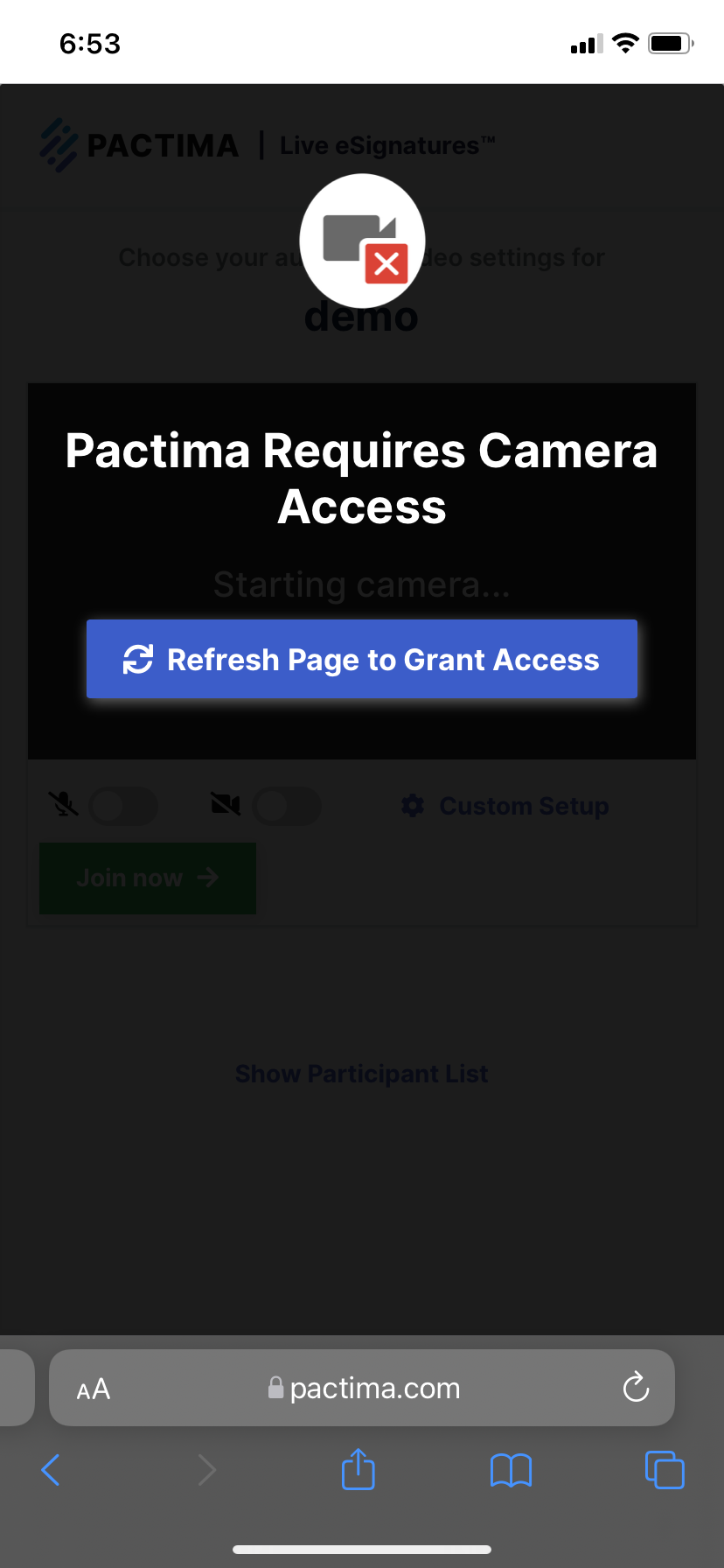
## **How do you know your camera is not properly configured?**
Often when your camera is not properly configured you will see the following screen before joining a session:
## **Android Chrome**
1. On your Android device, open the Chrome app .
2. To the right of the address bar, tap More (triple dots) > Settings.
3. Tap Site Settings.
4. Tap Microphone or Camera.
5. Tap to turn the microphone or camera on or off.
6. Unblock BOTH camera and mic.
## **iOS Safari**
Typically, Safari prompts for cam/mic access for each call. This is a privacy setting imposed by Apple. Follow the steps below.
### Refresh the call
- Refresh the Safari tab
- You should be alerted for Microphone & Camera Access
- Tap "Allow"
If that doesn't work, see the steps below
### Check camera access is enabled on iOS
- Open the Settings app
- Tap on Safari > Camera
- Scroll down to Camera & Microphone
- Confirm that "Ask" or "Allow" is checked
- Retry the "Refresh the call" steps, above.