For the complete documentation index, see llms.txt
For the complete documentation index, see llms.txt
Configuring your camera and microphone in your browser
Ensuring your camera and microphone are properly configured in your web browser is crucial for a seamless live ceremony experience. If these settings are not correctly set up, you might miss out on key moments or face communication barriers. This guide will walk you through the process of granting the necessary permissions in various browsers. If you've already given permissions and encounter issues, please review your computer's software settings.
We'll cover the following browsers:
- Chrome
- Safari
- Firefox
- Edge
## **Chrome**
1. In a new tab, type in " **chrome://settings/content**". This will take you to the **Site settings**.
2. Scroll down to the _Permissions_ section and click either **Camera** or **Microphone**.
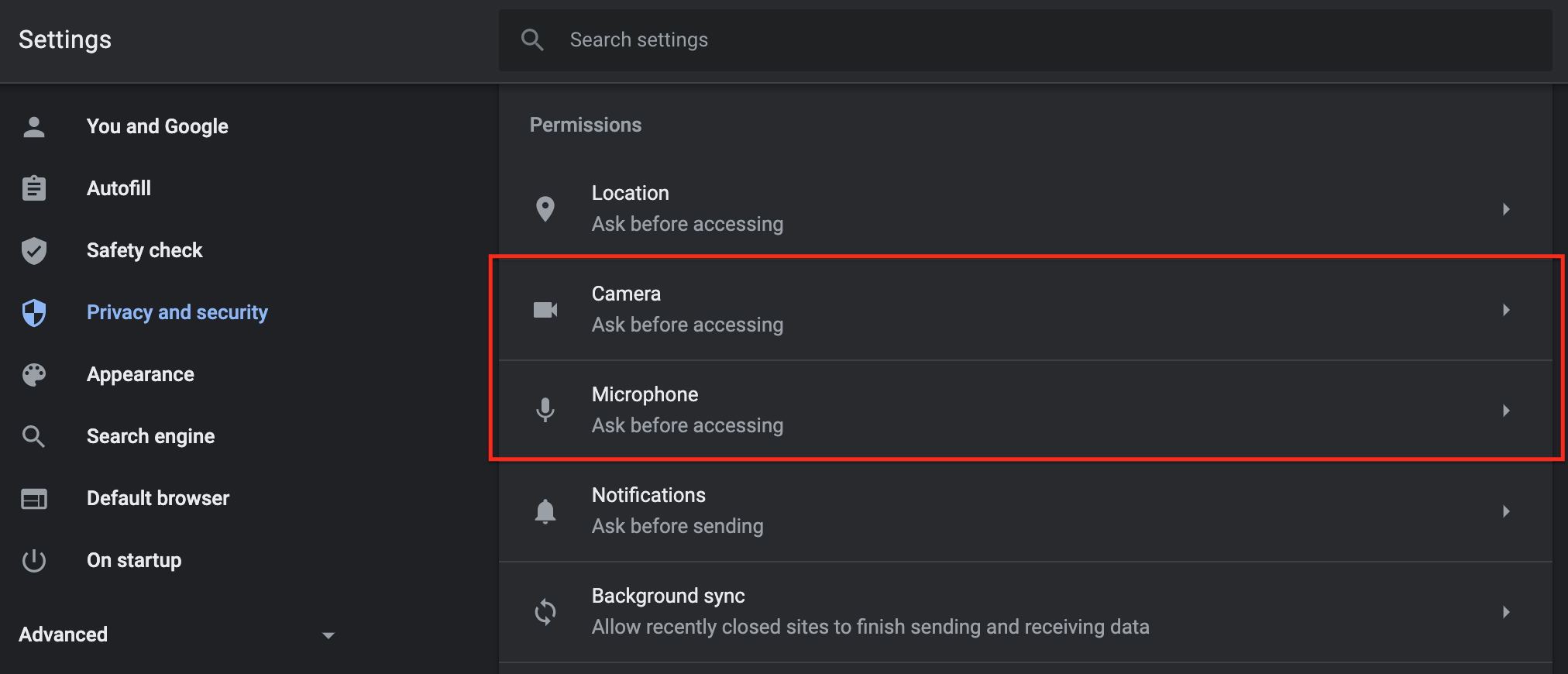
3. Set to **"Ask before accessing (recommended)"**. It is recommended to make sure both Camera and Microphone are set to this.

4. Return to the Snapdocs RON (formerly Pactima) page and refresh the page
5. Click **Allow** on the pop-up that appears
## **Safari**
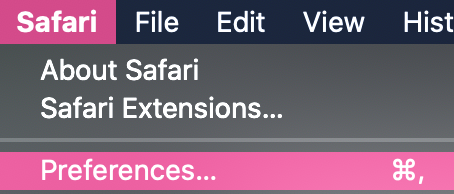
1. After opening **Safari,** click the name in the top left corner. Select **Preferences**
- 
2. Under the _Websites_ tab, click either **Camera** or **Microphone**. Make sure that the website " **pactima.com**" is set to either **Allow** or **Ask.**
3. Return to Snapdocs RON (formerly Pactima) and refresh the page.
4. A pop-up should appear, click **Allow**
## **Firefox**
1. Right-click anywhere in the browser, and click " **View Page Info**".
2. Under the _Permissions_ tab, find **Use the Camera** and **Use the Microphone** sections.
- If using default settings, make sure that either **Always Ask** or **Allow** is selected.
- If **Block** is selected as default, uncheck the "Use Default" box and select **Always Ask**.
3. Return to Snapdocs RON (formerly Pactima) and refresh the page.
- If set on **Always Ask**, a pop-up should appear right below the URL
- To not have this pop up appear, check "Remember this decision".
4. Click **Allow**
If you are still experiencing issues, make sure the following is in place in your browser settings:
1. In a new tab, type in " **about:preferences#privacy**". This will take you to the **Privacy & Security** section of your browser.
2. Scroll down to the _Permissions_ section and click **Settings...** on either **Camera** or **Microphone**.

3. Make sure that " **https://pactima.com**" is set to **Allow**. If not, set to **Allow** and refresh your browser.
## **Edge**
1. In a new tab, type in " **edge://settings/content**". This will take you to the **Site Permissions**.
2. Click into either the Camera or Microphone section
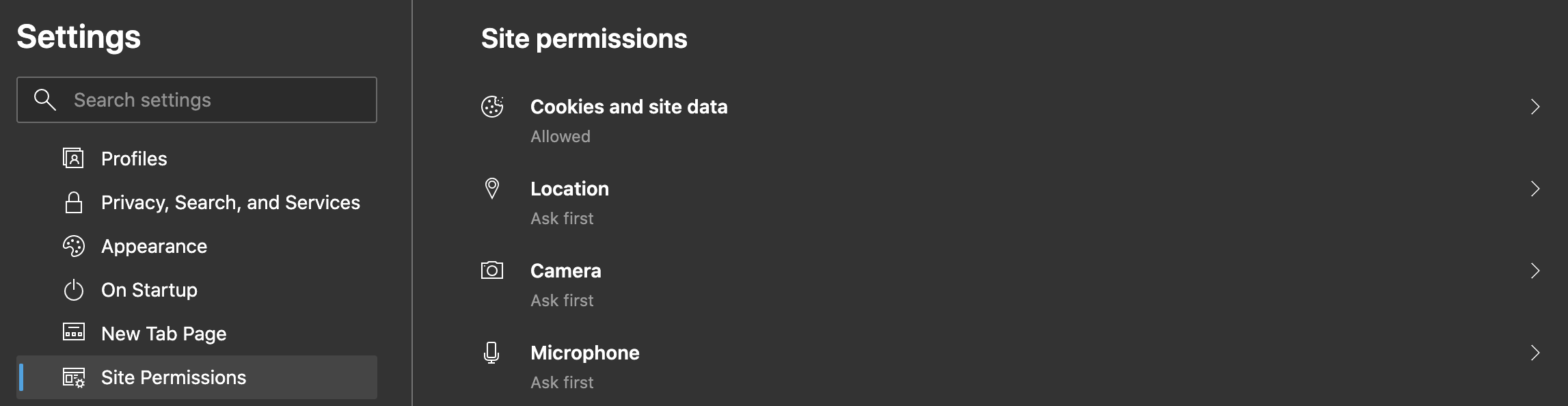
3. Set to **"Ask before accessing (recommended)"**. It is recommended to make sure both Camera and Microphone are set to this.

4. Return to Snapdocs RON (formerly Pactima) and refresh the page
5. When the pop-up appears, select **Allow**